Ipwnder For: Windows Tool ((new))ipwnder for windows tool

Ipwnder For: Windows Tool ((new))

iPwnder for Windows is a specialized firmware flashing and device management tool primarily designed for technicians, developers, and tech enthusiasts who need to handle advanced device configurations. Often paired with hardware like the EFT Pro Dongle , this software simplifies complex processes such as entering Pwned DFU mode and flashing custom firmware. Key Features of iPwnder for Windows The tool is recognized for its stability and user-friendly approach to low-level device management: Firmware Flashing: Efficiently manages and automates the flashing of custom or official firmware. Device Compatibility: Supports a wide range of devices, including routers and smart hardware. System Stability: Compatible with most modern Windows versions, including Windows 7, 8, 10, and 11 . Error Prevention: Features a clean interface with clear prompts and error messages to help users avoid common mistakes like using incompatible firmware files. Pwned DFU Support: Essential for bypass operations and booting ramdisks on mobile devices. How to Use iPwnder for Windows For most advanced tasks, follow these standard steps: Hardware Connection: Connect your EFT Pro Dongle to a stable USB port. This dongle is critical for establishing a secure communication link. Installation: Download the latest version of the software from a trusted source like AndroidFileHost and install it on your PC. Configuration: Launch the application and select your specific device model or the firmware version you intend to flash. Target Connection: Connect the device you wish to modify to the computer via the dongle or a high-quality USB cable. Execution: Initiate the process (e.g., clicking "Flash" or "Pwned DFU"). The software typically completes these tasks in under 10 minutes. Safety and Compatibility Tips To ensure a successful experience and avoid "bricking" your hardware: Verify Firmware: Always double-check that the firmware file exactly matches your device model. Update Regularly: Keep both the iPwnder software and your dongle drivers updated to the latest versions for the best performance and security. Use Original Cables: Connection stability is vital; a sudden disconnect during flashing can cause permanent device failure.

Downgrade Your iOS Device: A Guide to the ipwnder Tool for Windows For the iOS jailbreak and modification community, Windows users have historically faced an uphill battle. For years, tools like checkm8 exploitation and bootrom exploits were largely reserved for macOS and Linux environments. If you wanted to downgrade your iPhone or put it into DFU mode via a custom exploit, you often needed a Mac or a complex virtual machine setup. Enter ipwnder for Windows —a lightweight, command-line utility that bridges this gap, bringing the power of the checkm8 bootrom exploit to Windows PCs. In this post, we’ll break down what ipwnder is, which devices it supports, how it works, and how to use it safely.

What is ipwnder? ipwnder is a Windows port of the popular ipwndfu tool originally developed by axi0mX. Its primary function is to exploit the checkm8 vulnerability in the bootrom of iOS devices. But what does that actually mean? The checkm8 vulnerability is a "hardware-level" exploit. This means it cannot be patched by Apple via a software update. By running ipwnder, you are forcing the device into DFU Mode (Device Firmware Update Mode) with the exploit active. This allows the device to accept custom firmware, enabling users to:

Downgrade iOS: Install older versions of iOS that are no longer signed by Apple. Jailbreak: Install checkra1n or palera1n. Bypass Security: Used in forensics and device repairs. ipwnder for windows tool

Supported Devices (The A7-A11 Chipset) Because ipwnder relies on the checkm8 bootrom exploit, it only works on devices that have this specific hardware vulnerability. This generally includes devices with A7 through A11 processors. Compatible Devices include:

iPhone: 4s, 5, 5c, 5s, 6, 6 Plus, 6s, 6s Plus, SE (1st Gen), 7, 7 Plus, 8, 8 Plus, X. iPad: iPad Mini series, iPad Air series, iPad (5th, 6th, 7th Gen), iPad Pro (1st and 2nd Gen). iPod: iPod Touch (6th and 7th Gen).

Not Supported:

iPhone XS, XR, XS Max, and newer (A12+ chipsets). Apple Watch.

Prerequisites Before You Start Before downloading ipwnder, you need to prepare your environment. Since this interacts with low-level USB drivers, standard Windows drivers won't always work correctly.

Install iTunes: You need Apple Mobile Device Support installed. If you don't want the full iTunes bloat, you can install a "slim" version or just the Apple Mobile Device drivers. Disable Driver Signature Enforcement: Windows usually blocks unsigned or custom drivers. You may need to disable this to allow ipwnder to communicate with your iPhone. A Trustworthy Source: Only download ipwnder from reputable GitHub repositories or developer forums. A Good Cable: Use an original Apple Lightning/USB cable. Cheap third-party cables often fail during DFU transfers. iPwnder for Windows is a specialized firmware flashing

How to Use ipwnder for Windows Using the tool is straightforward, though it requires the Command Prompt. Here is a step-by-step guide: Step 1: Enter Standard DFU Mode Before running the tool, you must put your iPhone into DFU mode manually.

Connect the iPhone to your PC. Press and hold the Power button for 3 seconds. While holding Power, press and hold the Volume Down button for 10 seconds. Release the Power button but keep holding Volume Down for another 5 seconds. If the screen stays black and Windows makes a "connected" sound, you are in DFU.
SCORRI

iPwnder for Windows is a specialized firmware flashing and device management tool primarily designed for technicians, developers, and tech enthusiasts who need to handle advanced device configurations. Often paired with hardware like the EFT Pro Dongle , this software simplifies complex processes such as entering Pwned DFU mode and flashing custom firmware. Key Features of iPwnder for Windows The tool is recognized for its stability and user-friendly approach to low-level device management: Firmware Flashing: Efficiently manages and automates the flashing of custom or official firmware. Device Compatibility: Supports a wide range of devices, including routers and smart hardware. System Stability: Compatible with most modern Windows versions, including Windows 7, 8, 10, and 11 . Error Prevention: Features a clean interface with clear prompts and error messages to help users avoid common mistakes like using incompatible firmware files. Pwned DFU Support: Essential for bypass operations and booting ramdisks on mobile devices. How to Use iPwnder for Windows For most advanced tasks, follow these standard steps: Hardware Connection: Connect your EFT Pro Dongle to a stable USB port. This dongle is critical for establishing a secure communication link. Installation: Download the latest version of the software from a trusted source like AndroidFileHost and install it on your PC. Configuration: Launch the application and select your specific device model or the firmware version you intend to flash. Target Connection: Connect the device you wish to modify to the computer via the dongle or a high-quality USB cable. Execution: Initiate the process (e.g., clicking "Flash" or "Pwned DFU"). The software typically completes these tasks in under 10 minutes. Safety and Compatibility Tips To ensure a successful experience and avoid "bricking" your hardware: Verify Firmware: Always double-check that the firmware file exactly matches your device model. Update Regularly: Keep both the iPwnder software and your dongle drivers updated to the latest versions for the best performance and security. Use Original Cables: Connection stability is vital; a sudden disconnect during flashing can cause permanent device failure.

Downgrade Your iOS Device: A Guide to the ipwnder Tool for Windows For the iOS jailbreak and modification community, Windows users have historically faced an uphill battle. For years, tools like checkm8 exploitation and bootrom exploits were largely reserved for macOS and Linux environments. If you wanted to downgrade your iPhone or put it into DFU mode via a custom exploit, you often needed a Mac or a complex virtual machine setup. Enter ipwnder for Windows —a lightweight, command-line utility that bridges this gap, bringing the power of the checkm8 bootrom exploit to Windows PCs. In this post, we’ll break down what ipwnder is, which devices it supports, how it works, and how to use it safely.

What is ipwnder? ipwnder is a Windows port of the popular ipwndfu tool originally developed by axi0mX. Its primary function is to exploit the checkm8 vulnerability in the bootrom of iOS devices. But what does that actually mean? The checkm8 vulnerability is a "hardware-level" exploit. This means it cannot be patched by Apple via a software update. By running ipwnder, you are forcing the device into DFU Mode (Device Firmware Update Mode) with the exploit active. This allows the device to accept custom firmware, enabling users to:

Downgrade iOS: Install older versions of iOS that are no longer signed by Apple. Jailbreak: Install checkra1n or palera1n. Bypass Security: Used in forensics and device repairs.

Supported Devices (The A7-A11 Chipset) Because ipwnder relies on the checkm8 bootrom exploit, it only works on devices that have this specific hardware vulnerability. This generally includes devices with A7 through A11 processors. Compatible Devices include:

iPhone: 4s, 5, 5c, 5s, 6, 6 Plus, 6s, 6s Plus, SE (1st Gen), 7, 7 Plus, 8, 8 Plus, X. iPad: iPad Mini series, iPad Air series, iPad (5th, 6th, 7th Gen), iPad Pro (1st and 2nd Gen). iPod: iPod Touch (6th and 7th Gen).

Not Supported:

iPhone XS, XR, XS Max, and newer (A12+ chipsets). Apple Watch.

Prerequisites Before You Start Before downloading ipwnder, you need to prepare your environment. Since this interacts with low-level USB drivers, standard Windows drivers won't always work correctly.

Install iTunes: You need Apple Mobile Device Support installed. If you don't want the full iTunes bloat, you can install a "slim" version or just the Apple Mobile Device drivers. Disable Driver Signature Enforcement: Windows usually blocks unsigned or custom drivers. You may need to disable this to allow ipwnder to communicate with your iPhone. A Trustworthy Source: Only download ipwnder from reputable GitHub repositories or developer forums. A Good Cable: Use an original Apple Lightning/USB cable. Cheap third-party cables often fail during DFU transfers.

How to Use ipwnder for Windows Using the tool is straightforward, though it requires the Command Prompt. Here is a step-by-step guide: Step 1: Enter Standard DFU Mode Before running the tool, you must put your iPhone into DFU mode manually.

Connect the iPhone to your PC. Press and hold the Power button for 3 seconds. While holding Power, press and hold the Volume Down button for 10 seconds. Release the Power button but keep holding Volume Down for another 5 seconds. If the screen stays black and Windows makes a "connected" sound, you are in DFU.
Converti video e audio in qualsiasi formato

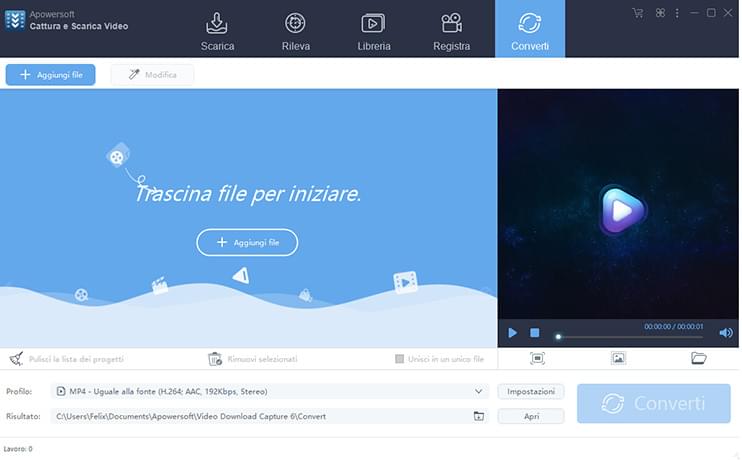
È possibile selezionare uno tra i seguenti formati MP4, FLV, 3GP, MP3 ecc, al momento del download di un file multimediale, oppure convertire il file in qualsiasi formato, una volta scaricato. Supporta anche 4K e HD.

Per saperne di più
Video
MP4, MKV, AVI, 3GP, FLV, WMV, HEVC, H.264, SWF, HTML5, M4V, MOV, ASF, DV, VOB, OGV, ASF, RM, MTS/M2TS/TS/TP/TRP, MOD, TOD
Audio
MP3, WMA, WAV, MP2, AAC, M4R, M4A, AC3, OGG, FLAC, AIFF, RealMedia
NASCONDI

Potente lettore multimediale

Il lettore multimediale incorporato, consente la riproduzione di qualsiasi formato video e audio. È inoltre possibile modificare la grandezza e spostare la finestra del lettore multimediale a seconda delle proprie necessità.

Per saperne di più
Guarda gratis
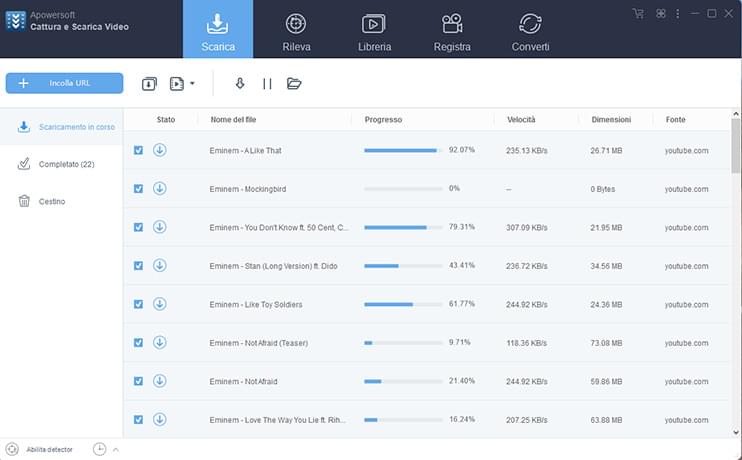
Utilizzando le ultime tecnologie, il software consente di riprodurre i video mentre si stanno scaricando, senza dover aspettare la fine del download.
Download veloce
Affidandosi ad un acceleratore indipendente, una volta selezionato il file viene impostato automaticamente il download ad alta velocità. La velocità può essere superiore ai 10MB/s.
NASCONDI

Fornisce agli utenti molte altre funzioni utili

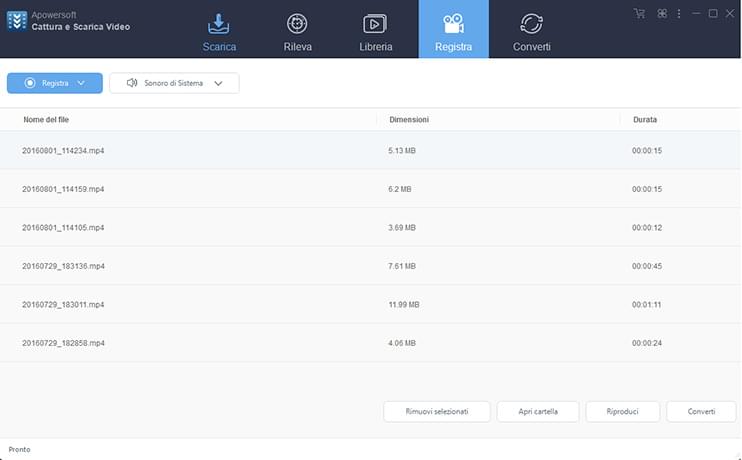
Video Download Capture non è solo un video downloader, ma possiede anche potenti funzioni di registrazione, conversione e una libreria.

Per saperne di più

Registratore schermo

Con questo strumento puoi registrare i video in streaming e tutte le attività dello schermo.

Editor Audio&Video

Usando il convertitore incorporato, puoi convertire qualsiasi video scaricato o salvato sul tuo PC in qualsiasi altro formato video o audio. Inoltre, puoi anche modificare i tuoi video, tagliandoli, riducendoli, aggiungendo sottotitoli ecc.

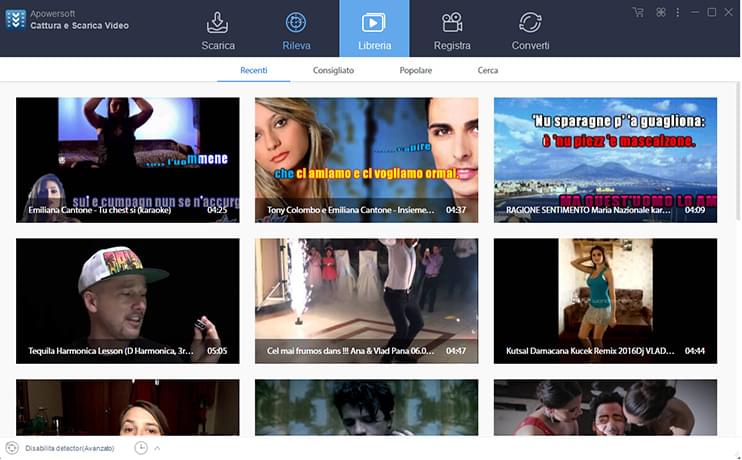
Libreria

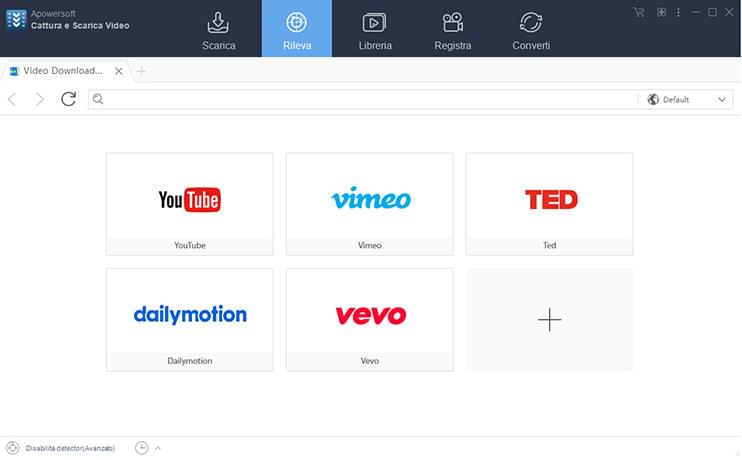
Dalla libreria puoi scaricare gli ultimi video attraverso un semplice click o cercare i video che ti interessano.

Aggiungere ad iTunes

Questa funzione ti aiuta ad aggiungere i video scaricati o i file audio al tuo iTunes sul PC in un attimo.

NASCONDI

Interfaccia semplice

  • download
  • detector
  • library
  • record
  • convert

    Perché scegliere Video Download Capture

    Voto: 5- basato su 3 voti.3 recensioni
    • Questo software fuonziona veramente bene! Ho scaricato veramente molti video online e non ha mai avuto problemi e la qualità finale è veramente ottima!

      Con l'aiuto di questo programma, ho scaricato video da Hulu e CBS con successo. Ho salvato gli episodi delle mie serie TV preferite sul mio iPhone e ora grazie ad Apowersoft posso guardarle mentre viaggio. Grazie!

    • Veramente molto utile. Posso scaricare file MP3 facilmente. A volte, scarico musica da Vevo in pochissimi secondi!

      Un'applicazione veramente potente! Non solo mi aiuta a scaricare moltissimi video da diversi siti, ma ha anche funzioni di registrazione e conversione. Non ho più bisongo di comprare nessun altro convertitore. Grazie.

      Conoscenze di base

      new
      Supporto
      Condividi
      Recensioni
      Commenta
      Torna su
      Clicca sotto per installare